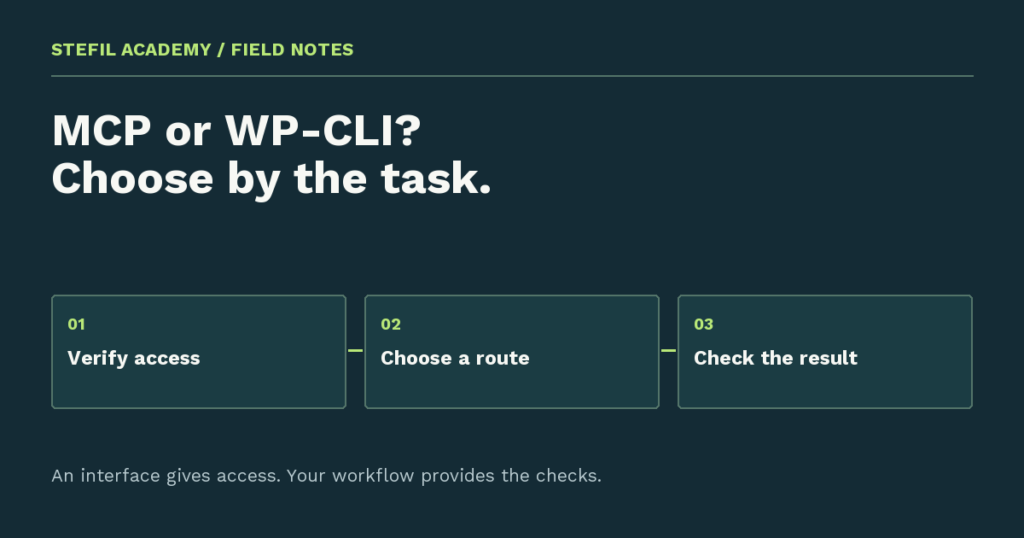
When you ask Codex to change a WordPress page, how does it reach the site? In the workflow explained here, Codex uses Novamira’s MCP connection to read WordPress and make the agreed edit. You then open the browser to check the result.
WP-CLI is another useful route, but it is optional. You do not need to type a terminal command for every page change. The important choice is which route already reaches the right site and lets you complete this particular job.
This comparison follows one ordinary example: changing a button label in a draft while keeping its link. It shows where MCP fits, where WP-CLI fits, and what you should check whichever route you choose.
First, separate the assistant from its connection
Codex is the AI assistant you give instructions to. It reads your request, uses its available tools, and explains the result. Novamira is the plugin giving that assistant access to WordPress in this example.
MCP means Model Context Protocol. It is a way for an assistant to connect to an application. “WordPress MCP” does not mean that every WordPress site has the same tools or that installing Codex automatically connects your site. The official MCP overview explains the connection between the assistant and the server providing its tools.
WP-CLI is WordPress’s command-line interface: a way to perform WordPress tasks by typing commands. Those commands must run where they can reach the intended installation’s files and database. Your laptop terminal does not gain that access simply because you know the website address.
What changes when you use Novamira MCP?
You stay in Codex to describe the work. Codex finds the available Novamira abilities, reads how they work, and runs the action needed for the task. An ability is simply an action offered by the plugin, such as reading a file or executing PHP on the site.
PHP is the programming language WordPress uses. Novamira’s PHP execution can work with WordPress functions, which lets an assistant inspect or update WordPress data without a separate named tool for every possible page operation. This makes checking the proposed action important.
Follow Novamira’s connection instructions for your chosen Codex client. Use the site’s generated setup. Do not invent an action called “update page” or copy an unrelated connector’s tool names.
A simple comparison
| Novamira MCP through Codex | WP-CLI |
|---|---|
| You describe the task in Codex and it uses the connected site actions. | You or an authorized assistant run explicit WordPress commands. |
| You need a working Novamira connection to the correct site. | You need a working terminal setup for the correct installation. |
| You review what the assistant found and the proposed edit. | You review the command, its arguments, and the selected site. |
| The browser shows whether the edited page looks and works correctly. | The browser shows whether the edited page looks and works correctly. |
Choose Novamira MCP when that is your established Codex connection and it supports the work. Choose WP-CLI when a known command and terminal setup are a better fit. Do not switch routes halfway through a failed write until you have checked whether the first attempt saved anything.
Use seven steps to choose and complete one task
The teaching task is to change “Send” to “Contact us” on one draft page. It is not a reported client result. Work on a staging site, which is a separate test copy of your website. Novamira’s recommended setup calls for development or staging use, with backups.
1. Write the result you want
Where: Codex. Name the expected staging address and describe the requested label change. Say that the link, layout, surrounding text, and draft status should stay the same. Ask for reading only at first.
What to check: Codex understands that this is one button, not a page redesign. If the page has several similar buttons, add the section heading. Do not ask it to replace every occurrence of a common word across the site.
2. Confirm that the connection reaches the right site
Where: the same Codex conversation. Ask it to use Novamira to read the site’s Home and Site URL values, then list relevant drafts. Have it return the real page titles and identifiers.
What to check: the returned site matches your intended test copy. If the connection fails, there is no page-editing result yet. Resolve the error or choose a route you already know works. A connector name in settings does not prove that a current read succeeded.
3. Find the actual button
Where: Codex using Novamira. Select the real draft from its list and ask it to read the button label and destination. It should also identify where that button is stored.
What to check: open the draft preview and compare those details. A WordPress Button block, an Elementor widget, and a shared template need different treatment. If the assistant has found the wrong place, correct that understanding before allowing an edit.
4. Decide whether MCP already covers the job
Where: Codex. Ask for the smallest proposed change through the discovered Novamira abilities. It should explain which draft and content will change, without publishing anything.
What to check: if the proposal is clear and supported, continue with MCP. You do not need WP-CLI just because the job involves WordPress. If a terminal operation is genuinely needed, have Codex explain why and where it would run before introducing that route.
5. Make the single agreed change
Where: Codex. Tell it to perform the proposed edit through Novamira, retain the old content privately, then read the saved draft again. That second read helps distinguish a completed write from a plan.
What to check: the returned draft remains a draft and the link is unchanged. If an error occurs, inspect the saved state before retrying. Two attempts are not automatically safer than one; the first may already have completed.
6. Check the visible page
Where: your browser. Refresh the draft preview, read the new label, and click the button. Compare the destination with the original. Try a wide and narrow window, then reopen the editor to check that the button remains editable.
What to check: the visitor result matches the request. If your Codex session also has browser tools, it can assist with those checks. The Novamira connection itself does not guarantee that Codex can see your browser.
7. Record the result before another task
Where: Codex or your task note. Record the site, draft ID, changed label, unchanged destination, and checks you completed. Mark anything you did not check. This lets you return later without guessing what was done.
For the complete first-task instructions, follow the Codex WordPress walkthrough. When a page behaves differently from the saved content, use the WordPress troubleshooting process.
Optional: a read-only WP-CLI check
If you already use WP-CLI, these commands can help identify the installation. Run them in the terminal prepared for that site, from its WordPress folder. They read values; they do not change the button:
wp option get home
wp option get siteurl
wp core version
Compare the actual addresses with your task notes. They may legitimately differ on some installations. The WP-CLI option reference explains the settings. If your environment uses a launcher or container, use its documented command format rather than guessing a prefix.
Keep the workflow simple
Start with the connection you already have. In this workflow, that means writing the request in Codex and letting Novamira perform the site actions. Keep the browser check at the end, because a successful saved value cannot show you a clipped label or a broken layout.
Reusable instructions can help Codex remember your editing preferences. They do not reduce the plugin’s real access. Keep your first experiments on test, and give each change a clear finish line. The WordPress playbook overview and free sample explain how those small exercises fit into repeatable website work.